Claim Wizard
Claim Wizard is a Chrome extension that works alongside Capsure to make submitting NDIS claims faster and less manual.
Last updated 19 days ago
It connects your invoices in Capsure directly to the my NDIS Participant Portal, helping you:
Auto-fill claim details
Attach invoice documents
Record claim IDs automatically
Keep Capsure in sync with your claims
This article explains eligibility, how to install Claim Wizard, and how to use it.
What is Claim Wizard?
Claim Wizard is your one-click sidekick for NDIS claiming.
When you submit a claim using Claim Wizard:
Claim fields are auto-filled using your invoice details from Capsure
The original invoice document is attached to the claim
Claim IDs and submission dates are saved back to Capsure
The invoice is automatically marked as Claimed
No copying, pasting, or switching between tabs.
Please note that Claim Wizard can only be used on desktop computers or laptops. It is not able to be used on mobile or tablet devices.
Eligibility: who can use Claim Wizard?
Claim Wizard only works in specific conditions.
You’ll need:
Google Chrome installed on your desktop or laptop computer
Access to the new my NDIS Participant Portal
A Capsure account
If all of the above applies to you, you’re eligible to use Claim Wizard.
Not sure which NDIS portal you’re using?
Claim Wizard only works with the new portal.
You’re likely using the old portal if:
The login screen says “myplace participant portal”
The homepage shows lots of square tiles
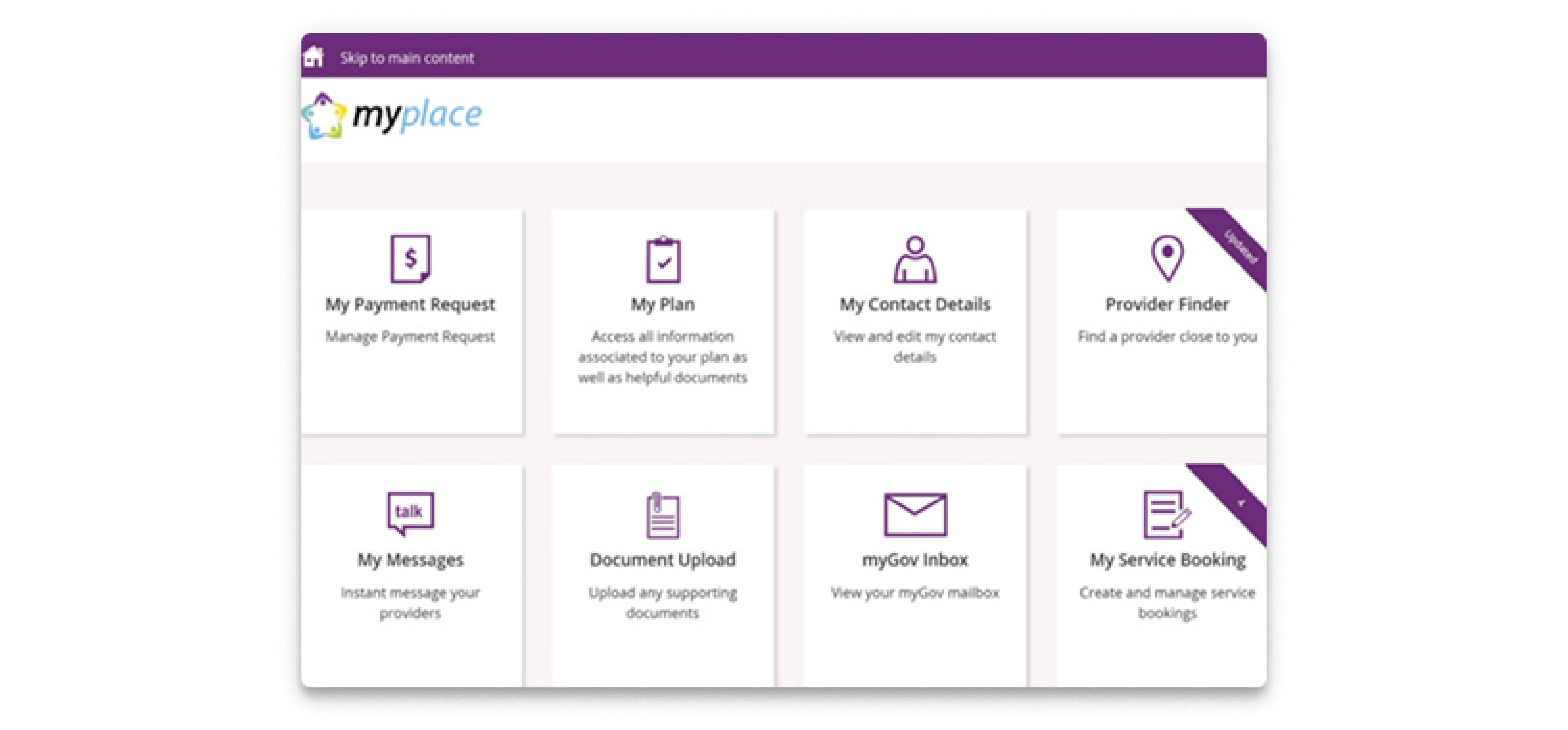
🚫 Claim Wizard is not compatible with this portal.
You’re using the new portal if:
The interface has a modern dashboard
You see sections like Recent claims and Quick links
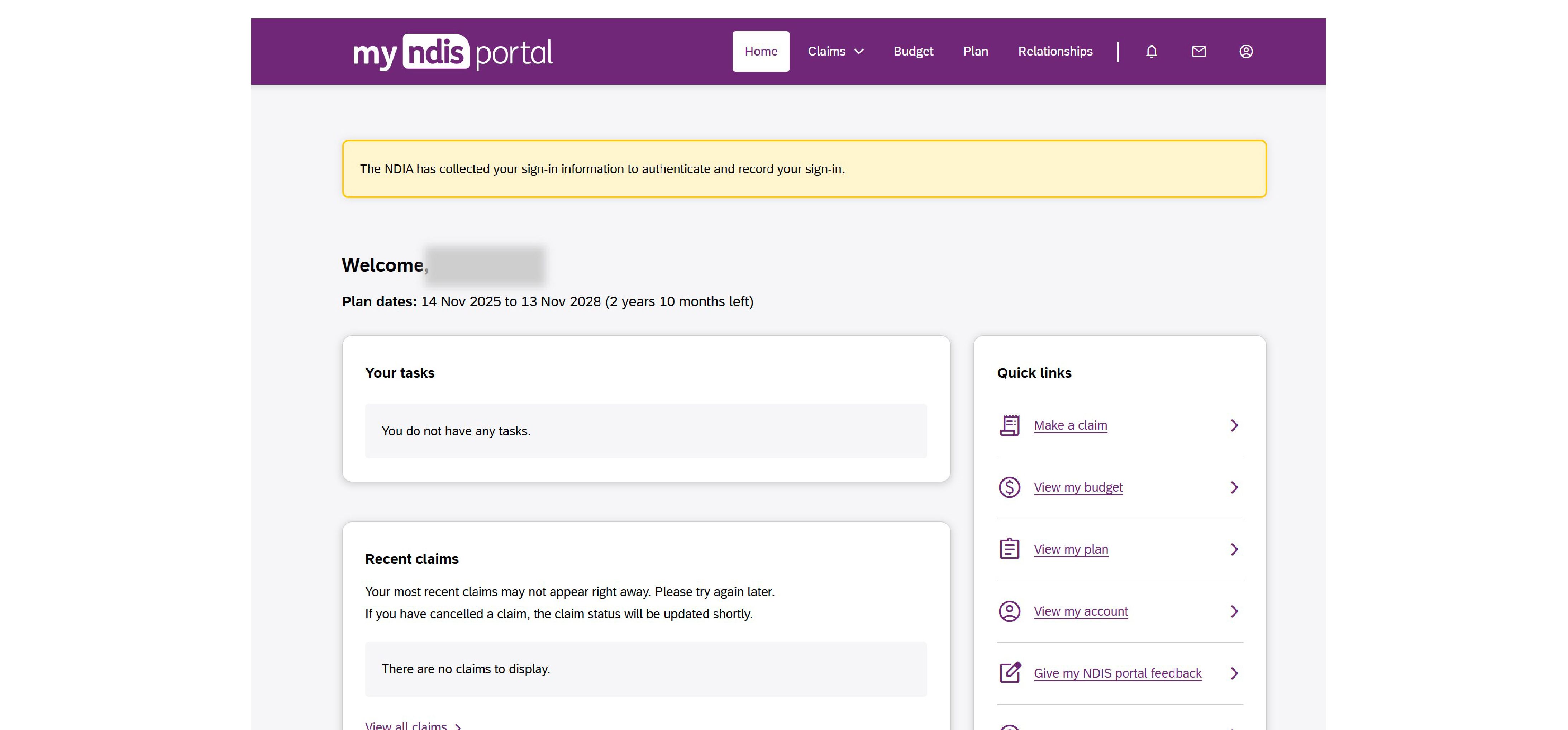
✅ Claim Wizard is compatible with this portal.
If you’re still on the old portal, there’s nothing you need to do — you’ll be upgraded automatically when a new plan is issued.
Installing Claim Wizard
Claim Wizard is installed as a Chrome extension.
To install it:
Open Google Chrome
Visit the Chrome Web Store listing for Claim Wizard
Click Add to Chrome
Confirm the installation when prompted
Once installed, Claim Wizard will appear as an icon in your Chrome toolbar.
After installation
After installing Claim Wizard:
Make sure you’re logged in to your Capsure account
Open the my NDIS Participant Portal in Chrome
You’ll be ready to use Claim Wizard when submitting claims
ℹ️ If you don’t see the Claim Wizard icon straight away, click the extensions menu in Chrome and pin it for easy access.
How to use Claim Wizard 🪄
Once installed, Claim Wizard appears as an icon in your Chrome toolbar.
Here’s how the claiming flow works.
Step 1: Log in to the my NDIS Participant Portal
Open Google Chrome and log in to the my NDIS Participant Portal.
Step 2: Navigate to claiming
Go to the section where you submit claims.
Step 3: Start your claim as you normally would
Start your claim using any method you usually use, including:
Make a new claim
Saved payee
Favourite claim
Claim Wizard works alongside your existing process.
Step 4: Open Claim Wizard
Click the Claim Wizard icon in your browser toolbar.

You’ll see a list of invoices from Capsure that are Ready to claim.
Step 5: Auto-fill and submit
Select an invoice and click Auto-fill claim.
Important: Make sure you haven’t typed or edited anything on the claim form before clicking Auto-fill.
Claim Wizard will:
Fill in the claim form
Attach the invoice document
Important: Stay on the claim screen while Claim Wizard is working. Do not click anywhere.
When it’s finished, review the form and click the purple Review and Submit button at the bottom of the page.
The next page will allow you to review your claim. Click Submit when you’re ready.
What happens after you submit a claim?
Once the claim is submitted:
The claim ID and submission date are saved to the invoice timeline in Capsure
The invoice is automatically marked as Claimed
The invoice moves into the Claimed list on your Board
This closes the loop — no manual tracking required.
Good to know
Claim Wizard does not submit claims on your behalf
You always review and submit the claim yourself
You stay in control at every step
Claim Wizard simply removes repetitive manual work.
That’s Claim Wizard! 🪄
If you understand:
Whether you’re eligible
How to install it
How it fits into your existing claiming process
…then you understand Claim Wizard.
Used together, Capsure and Claim Wizard create a clear, traceable workflow from invoice → claim → record-keeping.