New vs. Old - NDIS Participant Portal
Claim Wizard only works with the new portal. Continue reading to check which version of the portal you're using.
Last updated About 2 months ago
You’re likely using the old portal if:
The login screen says “myplace participant portal”
The homepage shows lots of square tiles
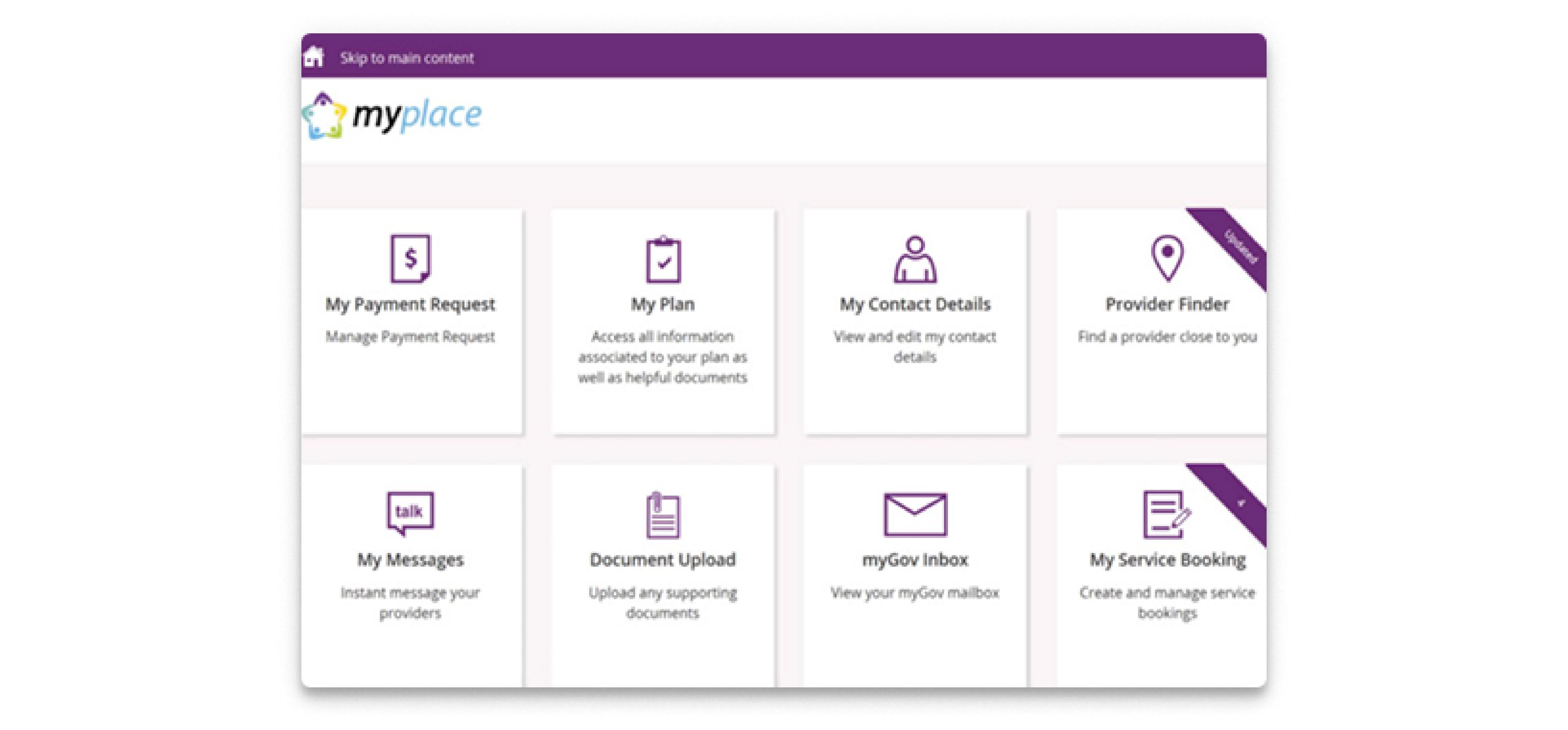
🚫 Claim Wizard is not compatible with this portal.
You’re using the new portal if:
The interface has a modern dashboard
You see sections like Recent claims and Quick links
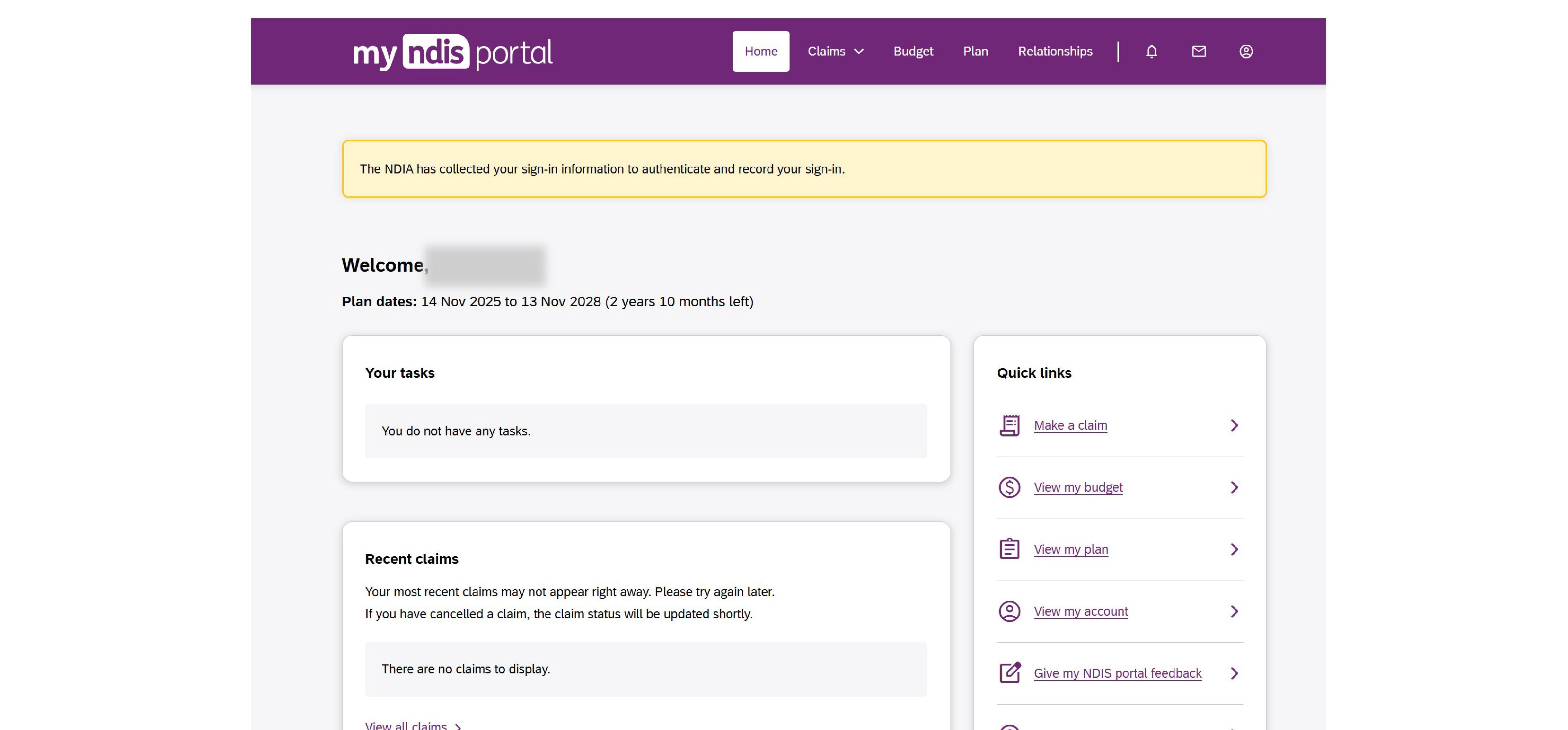
✅ Claim Wizard is compatible with this portal.
If you’re still on the old portal, there’s nothing you need to do — you’ll be upgraded automatically when a new plan is issued.
What if I’m on the old portal?
No problem — you can still use Capsure exactly as normal.
The only difference is that you’ll submit your claim manually in the NDIS portal, then come back to Capsure to record it.
Here’s how it works:
Submit your claim in the NDIS portal as you usually would
In Capsure, open the invoice and click Mark as claimed
Add your Claim date (recommended)
Optionally add your Claim ID for your records
Save — and you’re done
Once saved, the invoice moves to your Claimed list and is recorded in your activity timeline.
Why this still matters:
Adding a claim date allows Capsure to:
Group your claims into expected deposit batches
Estimate when your NDIS funds should arrive
Help you understand what money is yours to keep vs what needs to be paid
Prefer to claim on the NDIS app?
That’s completely fine — Capsure still fits perfectly into your workflow.
Just claim in the app as you normally would, then return to Capsure to mark the invoice as claimed.
Same simple steps:
Click Mark as claimed
Add your Claim date (recommended)
Add a Claim ID (optional)
Save
You’ll still get the full benefit of:
Tracking what’s been claimed
Knowing what’s been paid vs unpaid
Seeing upcoming NDIS deposits
Keeping everything organised in one place