Mark an invoice as claimed
If you’re claiming through the NDIS app or the old myplace portal, you can still keep everything organised in Capsure by marking invoices as claimed manually. This helps you keep accurate records and track your expected payments.
Last updated 5 months ago
When should I mark an invoice as claimed?
After you’ve submitted a claim through the NDIS app or portal, come back to Capsure and mark the invoice as claimed.
How to mark an invoice as claimed
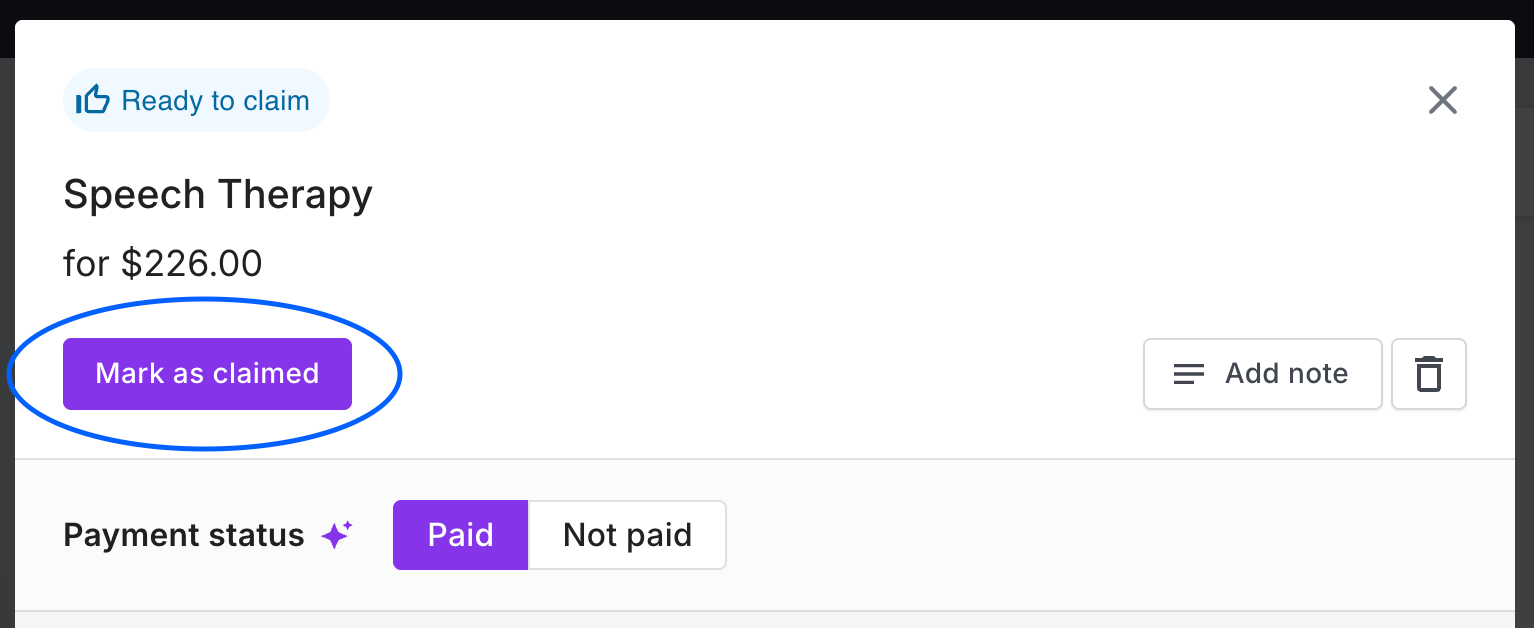
Open an invoice in your board
Click Mark as claimed
Add your claim details (optional)
Click Save
Add a claim date (recommended)
Adding a claim date helps Capsure track when you can expect your NDIS payment.
This allows the invoice to be included in an Expected NDIS deposit
You’ll see grouped payments based on when you submitted claims
If you skip this step, the invoice will still be marked as claimed — it just won’t be included in a deposit prediction.
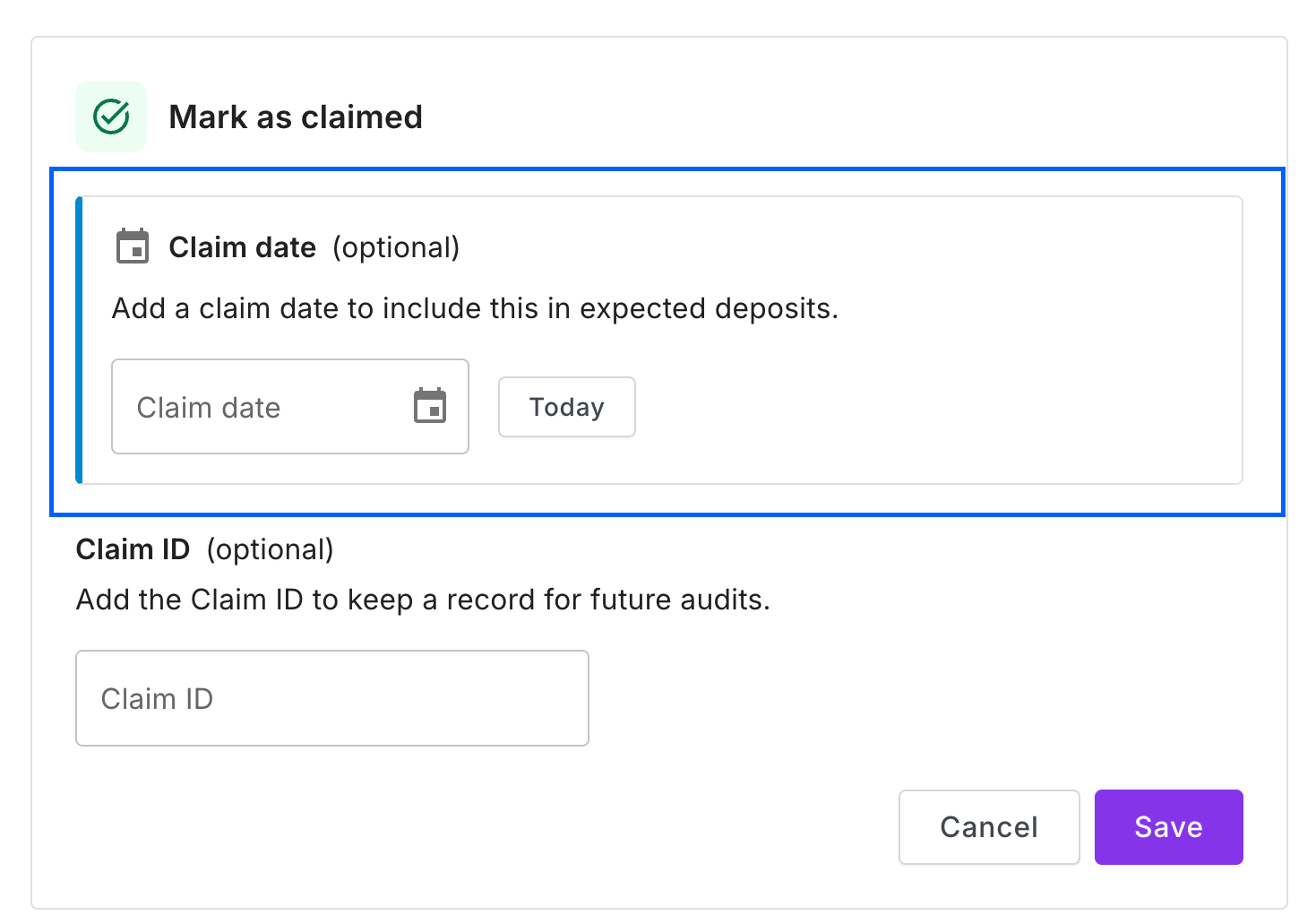
Add a Claim ID (optional)
You can also add a Claim ID for your records.
This is useful if you:
Want a clear reference for future audits
Need to match claims with NDIS payment records
Prefer keeping detailed documentation
What happens after I mark as claimed?
Once saved:
The invoice moves to the Claimed section
If a claim date is added, it will be grouped into an Expected NDIS deposit
You’ll be able to see when payments are likely to arrive
💡 Why this matters
Even if you’re claiming outside of Capsure, marking invoices as claimed helps you:
Keep everything in one place
Stay on top of incoming payments
Maintain clear records for audits
Using the Claim Wizard?
If you’re using the Claim Wizard (Chrome extension), you don’t need to do this manually — Capsure will automatically mark invoices as claimed and save the claim details for you.
Something not working?
If you’re unsure whether an invoice has been claimed or need help updating details, you can:
Open the invoice and edit it anytime
Or reach out — we’re here to help